
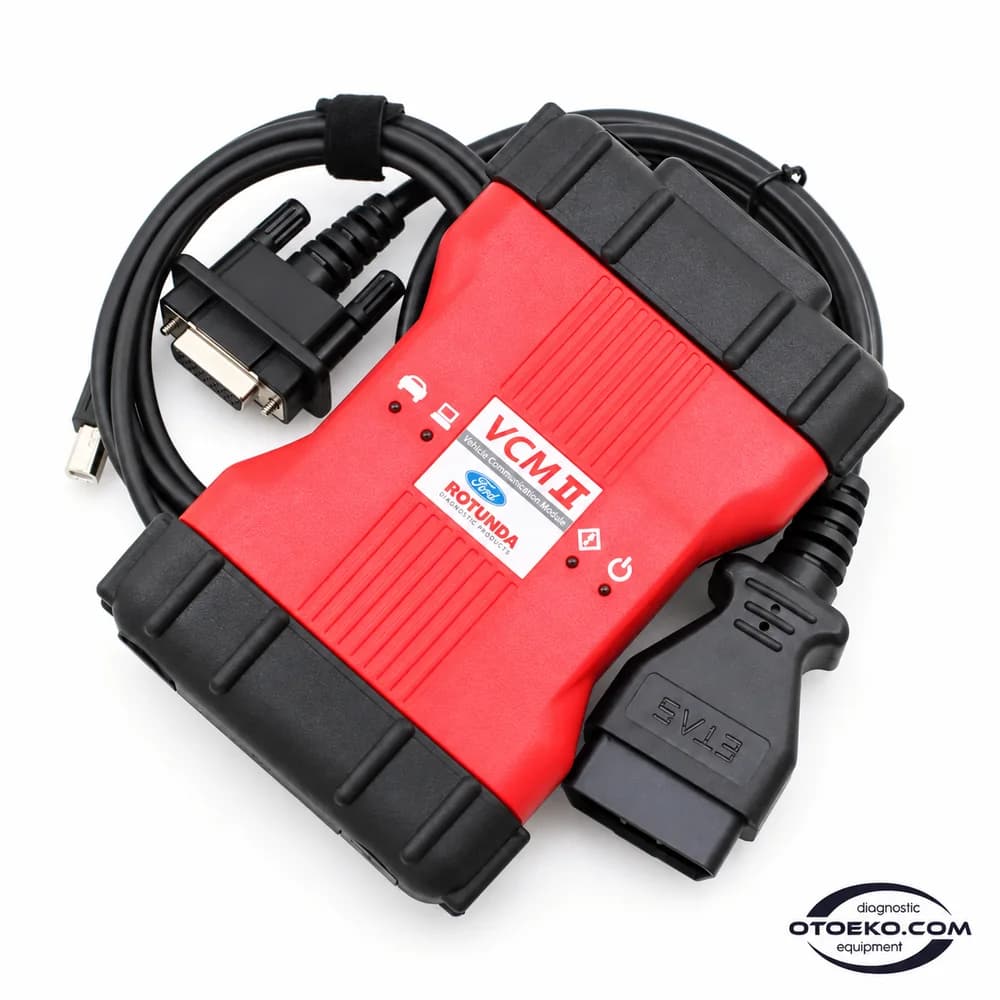
VCM II
Move from fault records to clear results in Ford diagnostics.
VCM II connects compatible diagnostic software to Ford vehicle systems. Combine fault records, live data and supported tests to follow the service job through measurable steps.
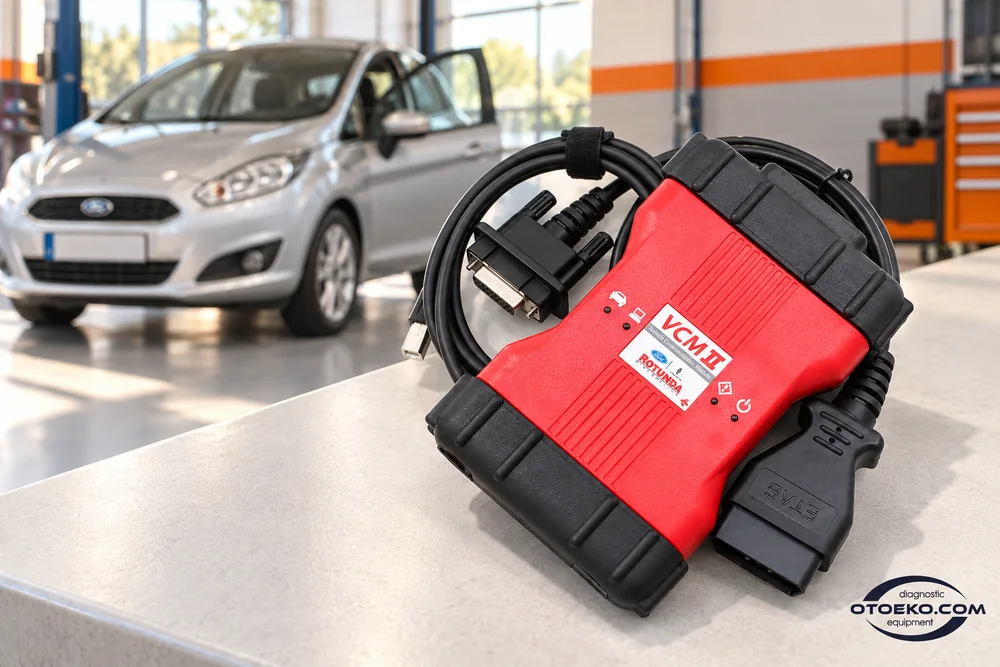
Four clear steps at the vehicle
1. Establish software coverage
Select the appropriate software for the vehicle and intended procedure. Confirm that the computer, interface driver and licence are ready to work together.
2. Connect USB and the vehicle cable
Connect the DLC/OBD cable to the vehicle socket and USB to the computer. Select the interface, then verify communication and the required ignition state.
3. Support the record with data
Read module identities and stored faults. Use relevant live parameters and supported tests to investigate the operating conditions under which the complaint occurs.
4. Verify the repair outcome
After service or component replacement, complete any required learning routines. Scan again and compare records and operating values with the initial condition.
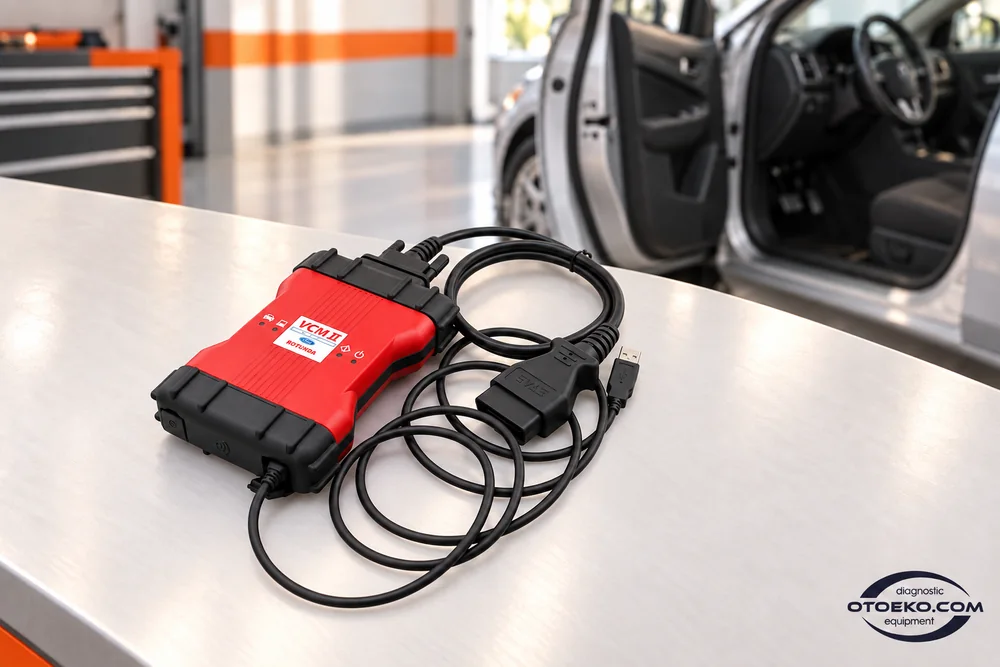
Module identity and fault records in one workflow
Before investigating the complaint, inspect the control units recognised by the software and their identification details. This confirms that you are working in the correct vehicle session and communicating with the system relevant to the job.
Fault codes in supported modules provide a direction for the investigation. Saving records before clearing them makes it easier to distinguish the original condition from later changes and verify the work when the repair is complete.
- Read vehicle and module identities
- Inspect DTC records in supported systems
- Save the starting condition before clearing faults
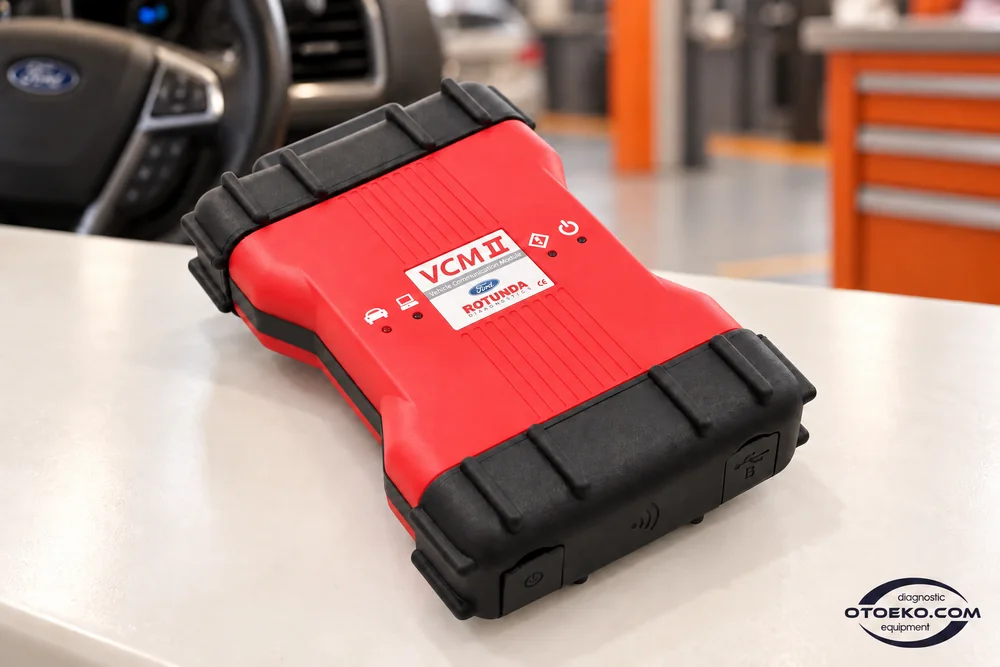
Choose live data around the complaint
A live-data screen can offer many parameters; the useful selection is the one related to the symptom you are investigating. Work with speed, temperature, pressure or switch-state information made available by the compatible software and control unit.
Comparing a value with ignition on, at idle and under other operating conditions can contribute to diagnosis. Where recording and graphing are available, compare those results with physical measurements and the actual behaviour observed on the vehicle.
- Focus on PIDs relevant to the symptom
- Compare different operating conditions
- Use available graphing and recording options
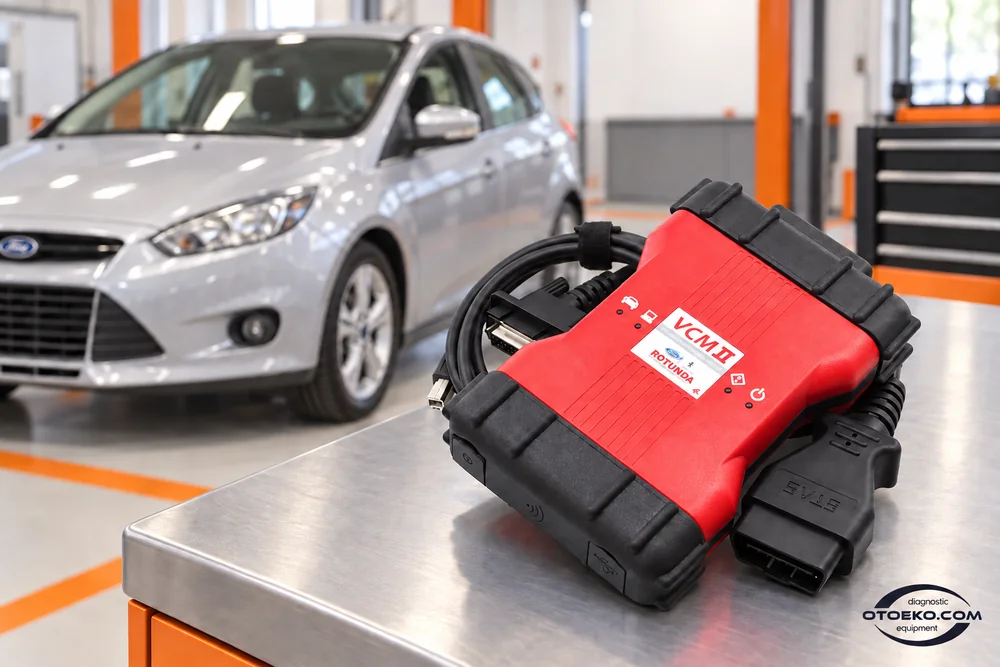
Inspect system response with supported self-tests
Self-test procedures offered for supported vehicles and modules let the system run its checks under defined conditions. Reading the results alongside the existing fault records gives the investigation a more concrete sequence of findings.
Ignition position, engine operation and other prerequisites vary by test. Follow the procedure in order, then interpret the completed test alongside live values and physical checks rather than treating one result as the entire diagnosis.
- Use the module tests offered for the vehicle
- Meet each test's prerequisites
- Interpret results with live data and other checks
Work areas for diagnostics and maintenance
Carry out fault investigation, service procedures and post-repair checks as one sequence in supported control units.
- Vehicle and control-unit identification
- Reading and clearing fault codes
- Monitoring live PID data
- Supported recording and graphs
- Module self-tests
- Appropriate service resets
- Supported learning and adaptations
- Module configuration/programming with suitable software and licence
Available menus vary by vehicle and software. Programming also requires the relevant calibration access, licence and power conditions.
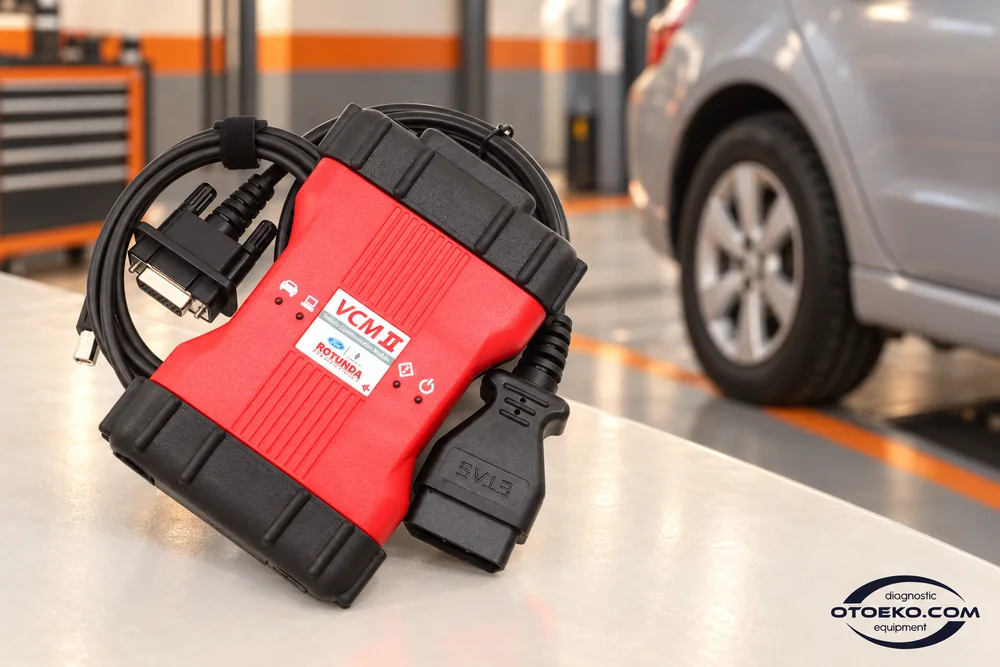
Finish service work with the necessary learning routine
Some maintenance tasks and component replacements require the associated control unit to complete a learning process or service routine. VCM II provides communication while compatible software carries out the procedure offered for that vehicle.
Reset, adaptation and other service menus vary across models. Prepare the conditions specified by the vehicle procedure, complete the steps and measure again afterward. Similar menu names do not establish identical coverage or prerequisites across different vehicles.
- Supported service and learning procedures
- Vehicle-specific adaptation steps
- Record and operating-value checks after the procedure
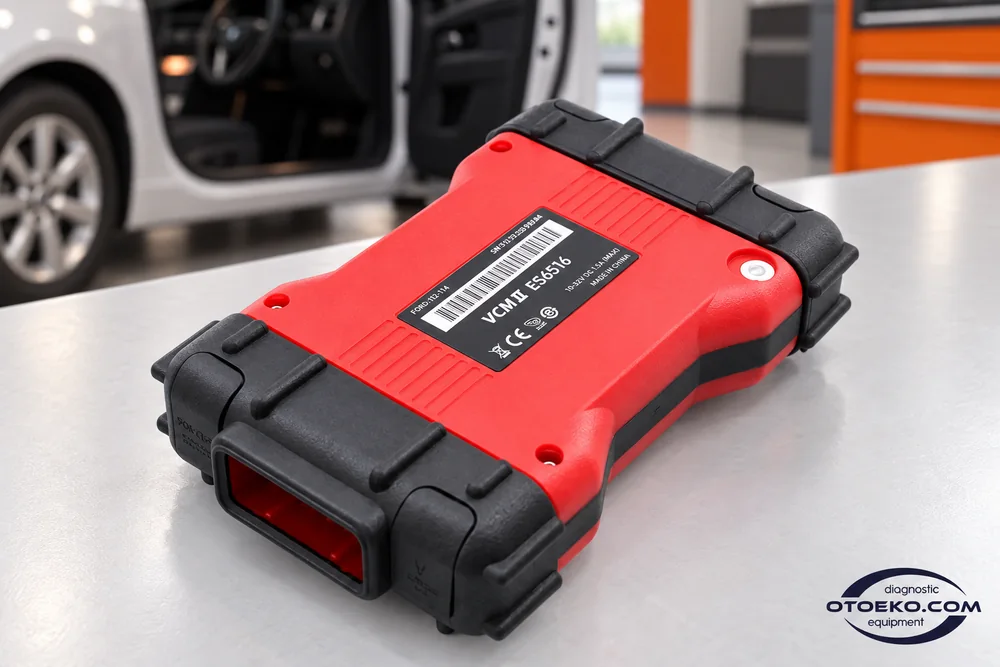
Pair the hardware with the right programming environment
Supported module programming and configuration require compatible software and a valid licence. Necessary calibration files, user access and vehicle conditions are as important as the physical connection provided by the interface.
Before starting, save the current configuration by the appropriate method, arrange the stable power support required by the procedure and check that communication will remain connected. Assess programming availability against the actual module and software version.
- Work with suitable software and an active licence
- Record configuration before making changes
- Prepare the required supply and uninterrupted connection

A 360° inspection from 24 frames
Rotate the interface to inspect its front, cable ends and connection points.
Inspect VCM II in the product video
Inspect the body, connectors and physical arrangement of the wired set in the Otoeko recording.
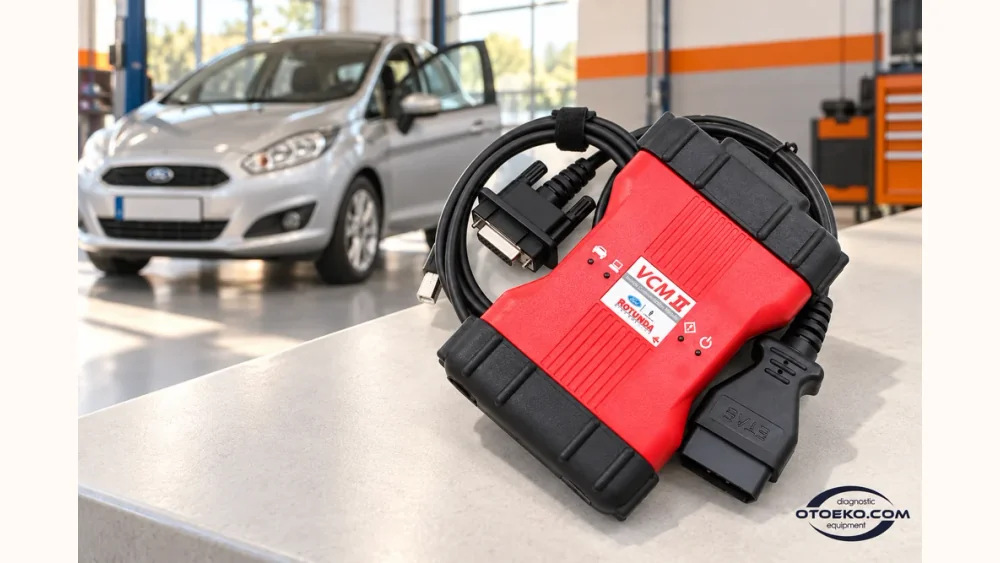
Connections and working requirements
| Model | VCM II |
|---|---|
| Product type | Vehicle communication interface / VCI |
| Computer connection | USB cable |
| Vehicle connection | DLC / 16-pin OBD cable |
| Working environment | Compatible Windows computer, VCI driver and diagnostic software |
| Software focus | IDS with VCM II support; FDRS depends on release and vehicle |
| Indicators | Connection / status LEDs on the body |
| Software licence | Separate from the hardware set |
| Wireless accessory | Not included in the existing package list |
Match this VCM II USB set to the vehicle, software release and intended procedure. Diagnostic menus and measurements are displayed in compatible computer software.
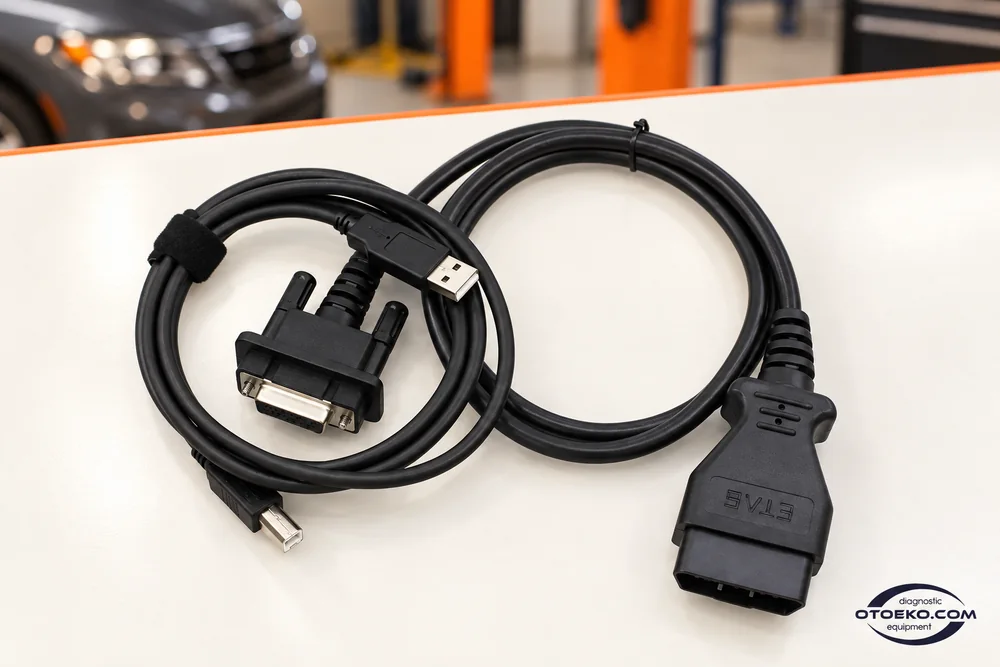
Organise connections with USB and DLC/OBD
The red-and-black VCM II unit, USB cable and DLC/OBD vehicle cable form a wired connection between computer and vehicle. Select the interface in compatible diagnostic software to start the working session.
Status indicators on the body help monitor the connection. A wireless dongle or road-recording accessory is not listed in this package. Plan the workspace around the physical connections supplied and route cables so they remain protected during service work.
- Computer communication over USB
- Vehicle connection through the DLC/OBD cable
- Status indicators on the interface body
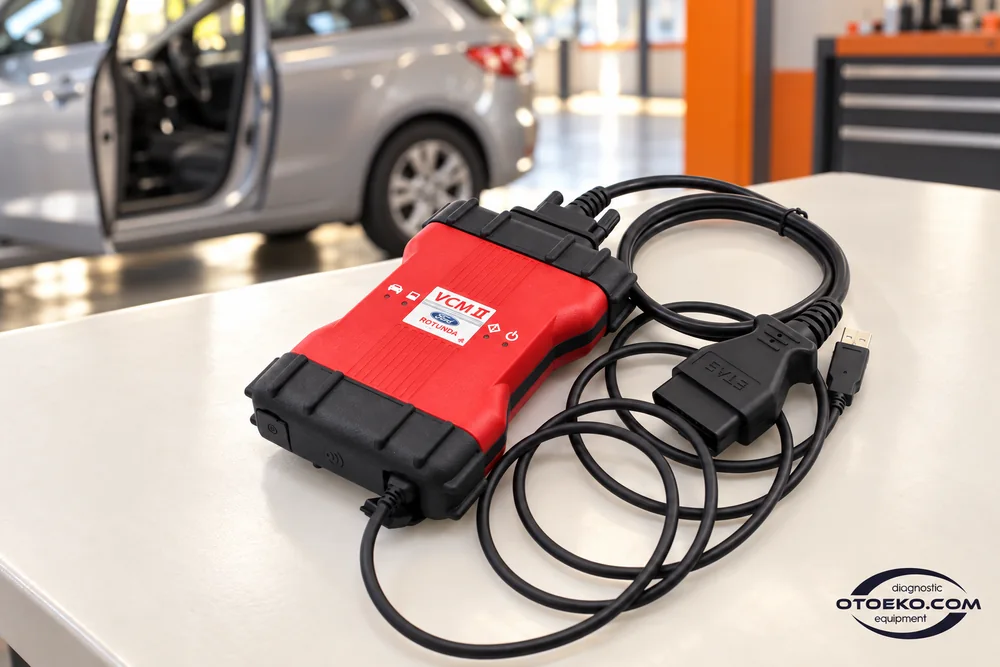
Match IDS, FDRS and the actual vehicle
IDS and FDRS selection cannot be reduced to a simple old-versus-new division. Ford's current coverage describes IDS from 1996 through selected 2018 vehicles, and FDRS for selected 2018-and-later vehicles; the exact choice follows the vehicle's software coverage list.
VCM II use with FDRS also requires confirmation of support in the relevant software release. Mazda has its own requirement for suitable Mazda VCM II hardware and software; a unit offered for Ford does not automatically acquire coverage for every Mazda platform.
- Match the vehicle to the software coverage list
- Check FDRS release and VCI support together
- Assess Mazda hardware and software requirements separately
VCM II hardware set
The set contains the three items below. A computer and software licence are supplied separately.
- VCM II main unit
- DLC/OBD vehicle connection cable
- USB computer connection cable
Hardware, licensing and the existing warranty
The set includes the VCM II hardware and specified cables, with 6 months of cover for manufacturing defects. Use requires a suitable computer, driver and software licence. Software subscriptions and permissions for protected operations are supplied separately.
Practical questions when choosing VCM II
Can it be used without a computer?
VCM II is not a standalone tablet. It communicates with the vehicle, while diagnostic screens and procedures run in compatible software on a suitable Windows computer.
Are a computer and software licence included?
The existing set contains the main unit plus OBD and USB cables. A computer, appropriate software and its usage licence are supplied separately; required access rights depend on the intended operation.
Is IDS only for vehicles built before 2013?
No. That general cutoff is incorrect. Ford's coverage describes IDS from 1996 through selected 2018 vehicles; the exact software choice follows the model and system coverage list.
Does FDRS work on every new Ford with this device?
There is no blanket guarantee for all new vehicles or software releases. Alongside the vehicle project, confirm that the FDRS release being used supports the VCM II interface.
Does this Ford VCM II support every Mazda too?
Mazda IDS requires suitable Mazda VCM II hardware. VCM II is also not supported for MDARS II. Full coverage of every Mazda generation cannot be assigned to the hardware in this Ford listing.
Can Ford IDS and Mazda IDS share one computer?
Mazda's installation information states that the two IDS environments should not be installed together on one computer. Plan a suitable separate software environment and Mazda-compatible hardware for Mazda work.
Is wireless connection included?
This set connects to the computer through USB. A wireless dongle and road-recording accessory are not included.
Is the interface alone enough for module programming?
No. Compatible software, an active licence, required calibration/access and suitable vehicle power support are necessary. Confirm the module procedure and interface compatibility before starting.