
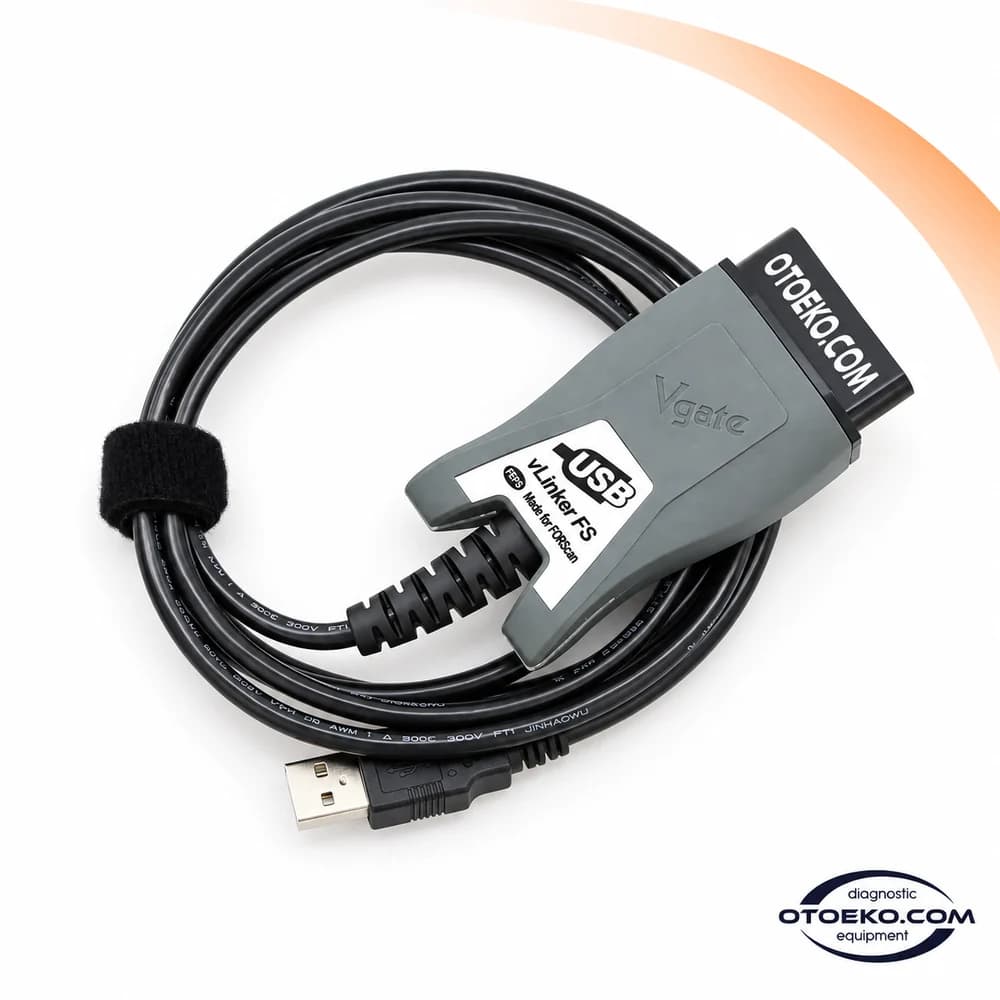
Vgate vLinker FS USB
Take a closer look at Ford diagnostic data.
Vgate vLinker FS USB is an OBD interface designed to connect your computer to the vehicle modules supported by FORScan. Use automatic HS/MS-CAN switching to explore fault codes, live values and vehicle-specific service menus in an organised workflow.
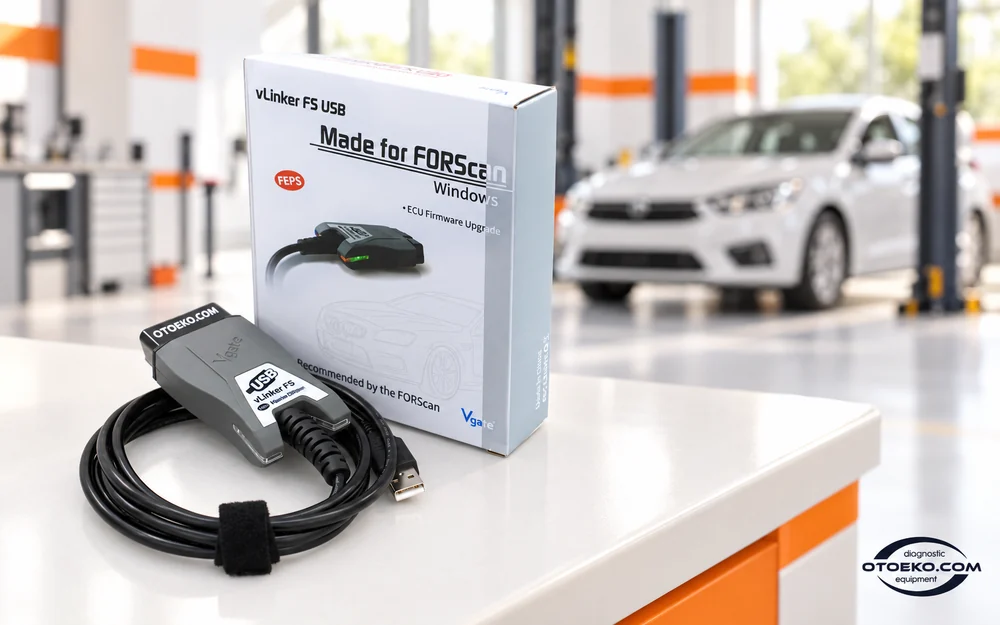
Connect, identify, inspect and check
1. Prepare software and drivers
Install a compatible FORScan version and the vLinker FS USB driver. Confirm that the computer recognises the USB device before starting a vehicle session.
2. Connect to the vehicle
Insert the OBD connector into the appropriate diagnostic socket and connect USB to the computer. Follow the ignition and connection conditions requested by the software.
3. Read the current state first
Check the vehicle profile and detected modules. Record fault codes and inspect the live parameters associated with the vehicle complaint.
4. Review the result after the operation
Run the supported service or configuration procedure under the correct conditions. Scan the modules again and check the result and operating values afterwards.
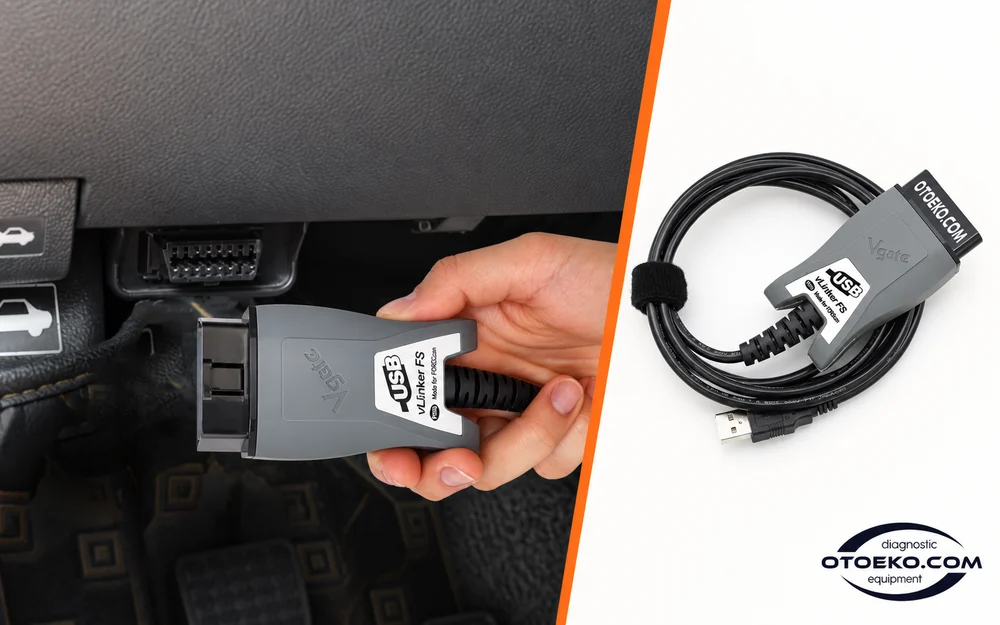
Move from a general OBD check to vehicle modules
With FORScan, an inspection can extend beyond the engine warning light. On supported models, focus on engine management, ABS, body electronics or other accessible control units as the job requires.
vLinker FS provides the communication interface between the computer and the vehicle. The modules displayed and the operations available are determined by the vehicle equipment, its control units and the coverage provided by FORScan.
- Inspect module identification on supported vehicles
- Read fault codes in the context of the relevant system
- Check that the vehicle profile matches the actual equipment
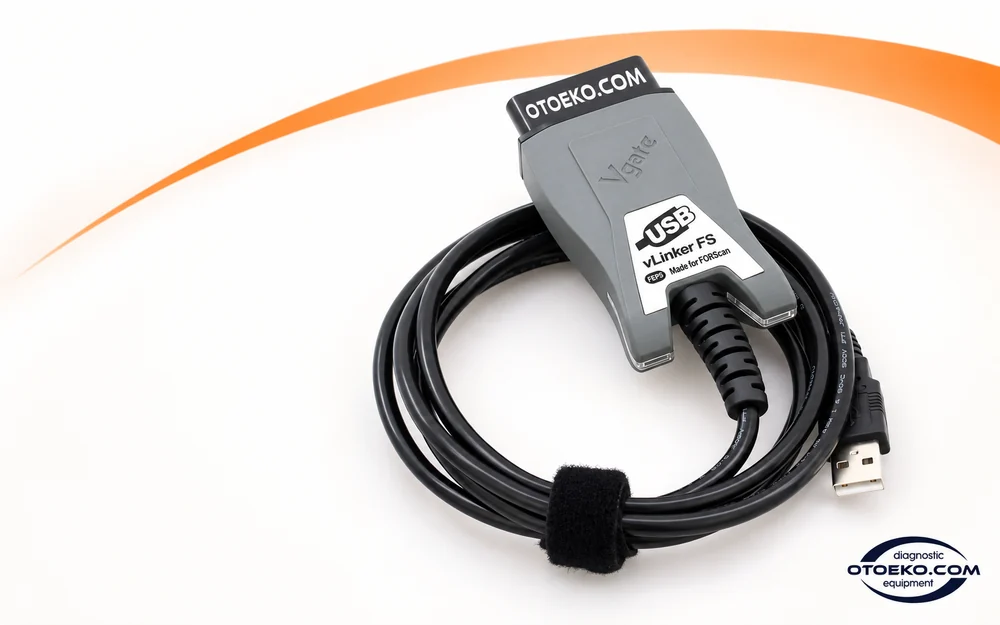
Access CAN networks without a manual toggle
Some vehicle systems communicate through different CAN networks. vLinker FS handles electronic switching for HS-CAN and MS-CAN automatically, removing the physical switch operation required by manual-toggle adapters.
This arrangement helps you move between the modules supported by the software. Automatic switching is a connection feature: it does not create a control unit or function that the vehicle or software does not provide.
- HS-CAN and MS-CAN access
- Automatic electronic switching
- A straightforward menu workflow with compatible software
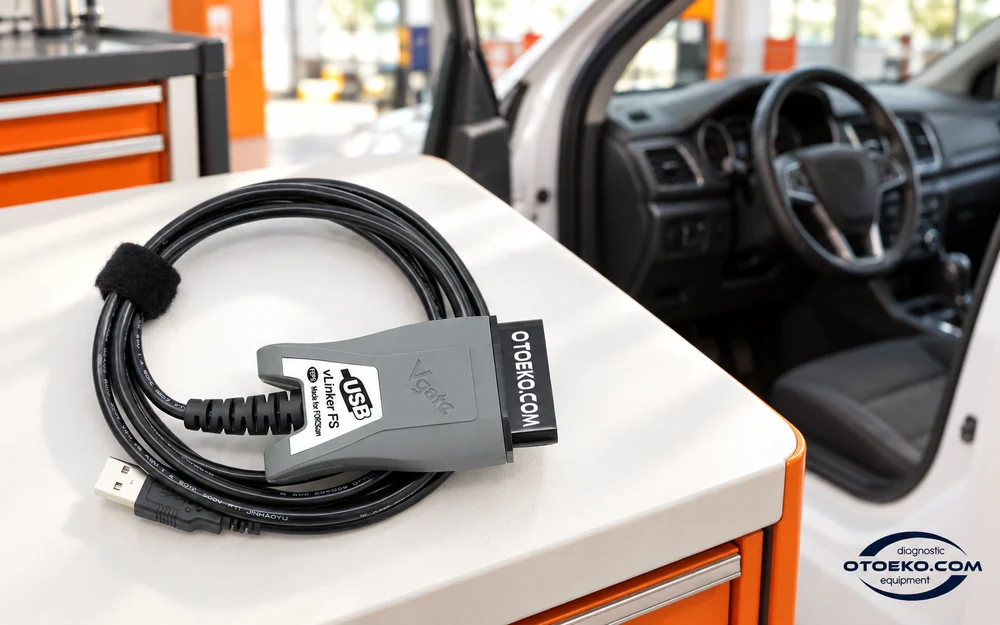
Combine stored faults with live operating values
A stored code can direct attention to a system, while live parameters help explain how that system is behaving now. Follow the PIDs available for the relevant module and examine the conditions associated with the complaint.
Selecting the relevant parameters keeps the display useful and manageable. Where available, compare temperature, speed or voltage values with the test conditions. A single value should be considered alongside other evidence before a component replacement decision.
- Read and record DTCs before clearing them
- Follow the supported live PIDs
- Compare operating conditions before and after repair
Use the available functions on the right vehicle
The selected vehicle determines the available scope, from basic diagnosis to supported service and configuration menus.
- Reading and clearing fault codes
- Following live PID data
- Reading module identification
- Supported module tests
- Vehicle-specific maintenance and service routines
- Supported adaptations and learning procedures
- Configuration of applicable modules
- Programming on supported vehicles with the required licence
Availability depends on the FORScan version, vehicle, ECU and licence. Activation of every hidden feature or programming of every ECU is not guaranteed.
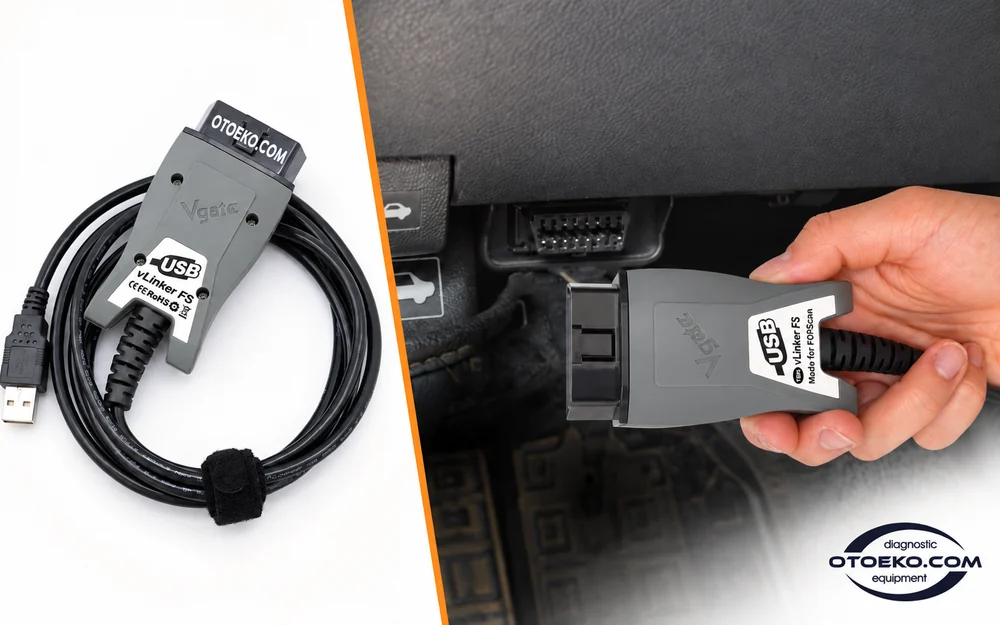
Follow service routines and module tests in order
On supported vehicles, FORScan may provide service procedures and module tests alongside diagnosis. Follow the reset or learning steps needed after maintenance through the menu for the relevant system.
Options such as battery management, injector registration or DPF service procedures are vehicle-specific. Follow the software instructions for engine temperature, ignition position and any other conditions the operation requires.
- Review the service menus listed for the vehicle
- Follow the prerequisites for each procedure
- Check results through a new scan and live values
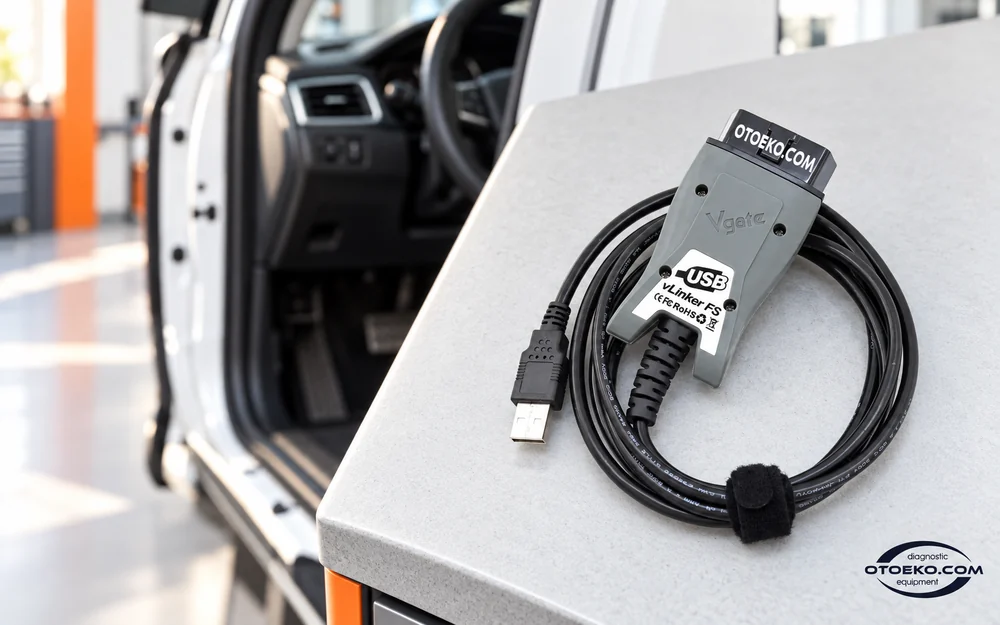
Keep original settings visible during configuration
Configuration options on supported modules let you inspect existing equipment settings and make applicable changes. The correct vehicle profile and, where required, a FORScan Extended Licence are important parts of that process.
Save the original values and note the parameters being changed before proceeding. A comfort or display option found on one vehicle may not exist on another with different equipment; match the available settings to the hardware actually fitted.
- Focus on supported configuration menus
- Save original values before making changes
- Consider licence and equipment requirements together

Explore the adapter in 360°
See the front and rear of the adapter, its connector and cable from different angles.
Take a closer look at vLinker FS USB
Inspect the housing, USB cable and OBD connector in the Otoeko product video.
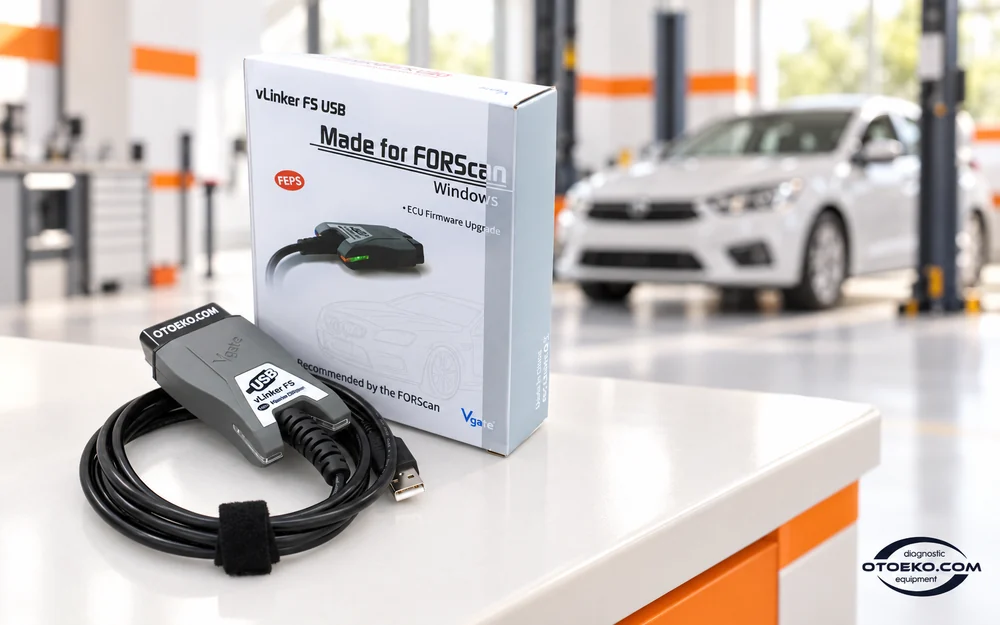
vLinker FS USB technical details
| Brand / model | Vgate vLinker FS USB |
|---|---|
| Computer connection | Fixed USB-A cable |
| Vehicle connection | 16-pin OBD |
| Primary software | FORScan for Windows |
| CAN switching | Automatic HS-CAN / MS-CAN |
| Programming-enable voltage | FEPS 18 V |
| Maximum stated serial transfer rate | Up to 3 Mbps, according to the manufacturer |
| OBD request length | Up to 4128 bytes |
| Serial buffer | 8192 bytes |
| Licence | FORScan Standard / Extended scope depends on the operation |
Vehicle and software determine scan and programming duration. This model uses USB; Bluetooth, DoIP, CAN-FD and J2534 are not supported.
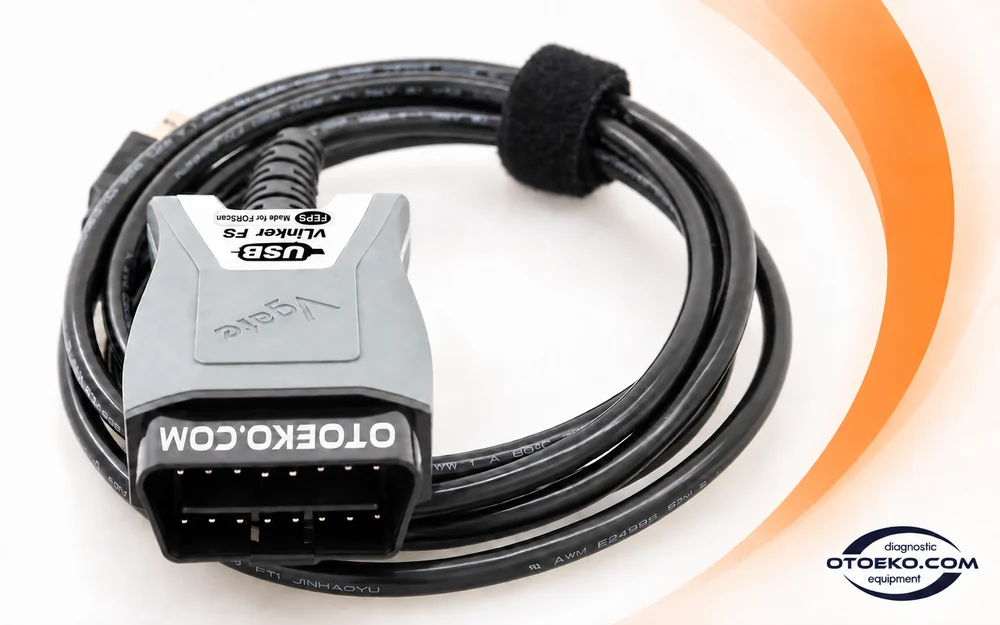
FEPS support for applicable programming procedures
Some programming procedures require a specific enable voltage in addition to data communication. The FEPS 18 V output in vLinker FS USB provides the hardware function needed by supported operations that use this requirement.
FEPS does not mean that every control unit can be flashed. FORScan support, the correct vehicle and module selection, any required licence and stable power conditions must all be considered together.
- FEPS 18 V programming-enable output
- Use with the applicable procedure and module
- Work with the correct files, licence and power conditions
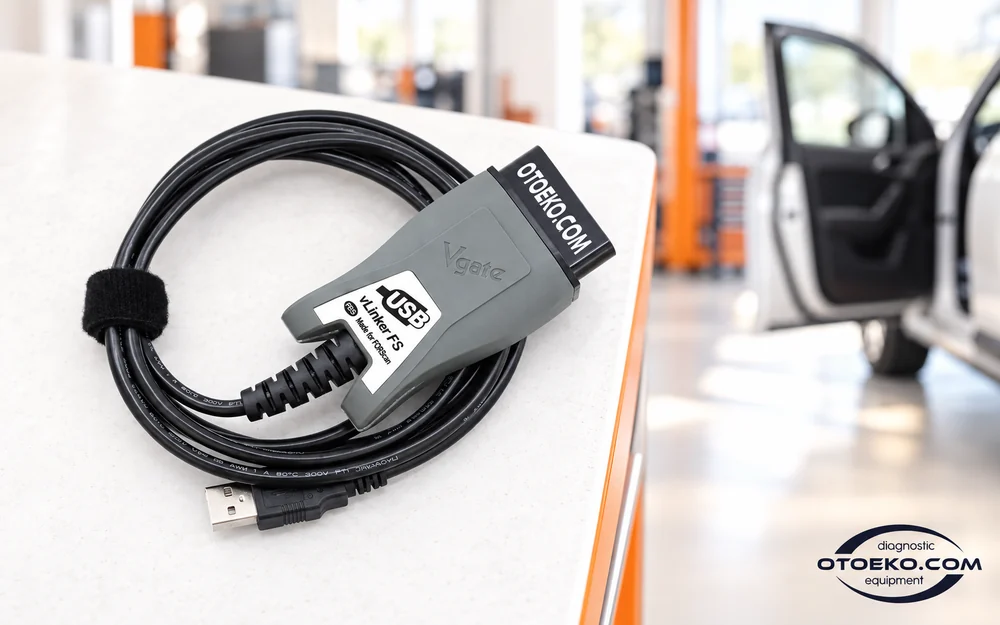
Prepare a direct wired working arrangement
The fixed USB cable and OBD housing connect the computer directly to the vehicle. Route the cable without tension and check that the OBD connector is fully seated before starting the session.
The USB controller, driver and adapter cable revision can affect communication behaviour. Verify the connection during initial setup, and treat diagnostic software and adapter firmware as separate components that need compatible versions.
- USB-A computer connection
- 16-pin OBD vehicle connector
- Check driver and firmware compatibility
The wired adapter set
The vLinker FS USB combines a fixed computer cable and OBD housing in one wired adapter.
- Vgate vLinker FS USB adapter
- USB connection cable fixed to the adapter
- Product packaging and user guide
Hardware and the FORScan licence
The adapter hardware and FORScan licence are separate items. Basic diagnostic functions and operations requiring an Extended Licence follow the software's licensing scope. A computer is not included. Trial and paid licence conditions are managed by FORScan; buying the adapter does not create an ongoing software subscription.
Common questions about vLinker FS USB
Is this the Bluetooth version?
No. This listing is for vLinker FS with a fixed USB cable. It connects to the computer through USB and should not be confused with Bluetooth adapters.
Which vehicles is it intended for?
It is intended for Ford, Mazda, Lincoln and Mercury models supported by FORScan. Exact system and operation coverage varies with vehicle model, year, equipment and control unit.
Do I need to switch HS-CAN and MS-CAN manually?
No. vLinker FS performs the required electronic switching automatically. The physical toggle step used with manually switched adapters is not required on this device.
Is an Extended Licence always necessary?
Basic fault-code and live-data operations do not have the same licence scope as advanced configuration. Use the licence required by FORScan for the operation you intend to perform.
Can I enable hidden features?
Supported vehicle and module configurations can be changed when the necessary equipment and software/licence support are present. Not every option is available or functional on every vehicle.
What is FEPS 18 V used for?
It is an enable voltage required by certain programming procedures. The adapter provides this output; vehicle, control unit and software support determine the operations available.
Can I use it with a phone?
The primary working environment for this model is a USB-connected Windows computer running FORScan. The experience of using a mobile Bluetooth adapter does not directly apply to this product.
What should I check if communication fails?
Check the USB driver, device recognition, cable and OBD seating, vehicle power and FORScan connection settings. The computer's USB controller and cable revision can also affect the connection.