
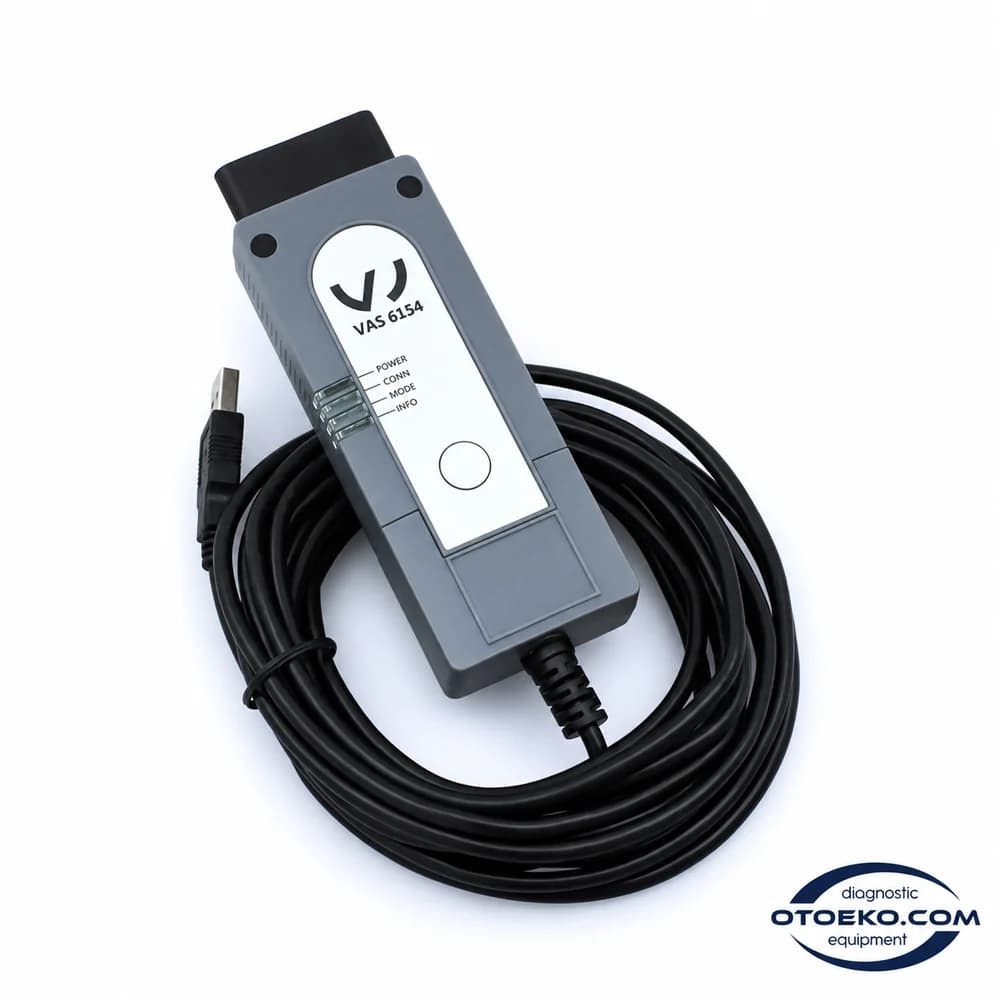
VAS 6154A 1:1
A structured workspace for Volkswagen Group diagnostics.
VAS 6154A 1:1 connects a compatible ODIS environment to the vehicle. Use USB or Wi-Fi to organise a workflow from identification and measured values to supported basic settings and post-service checks.
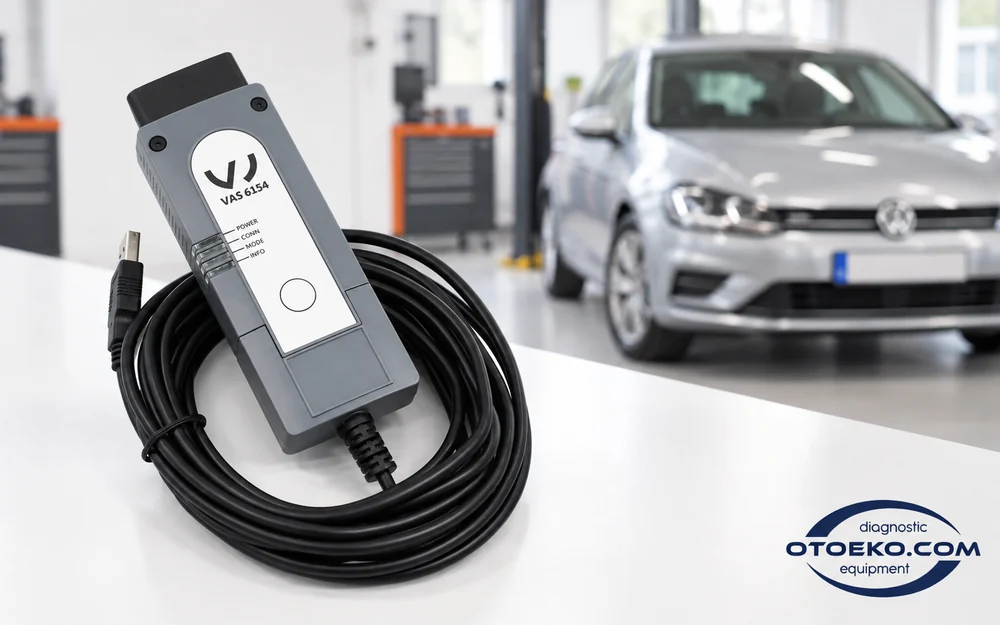
Four steps from vehicle reception to final checks
1. Match the working environment
Check that the computer, interface driver and ODIS version work together. Prepare the licence and access rights needed for the intended procedure.
2. Confirm the connection
Connect the interface to the vehicle and use USB or the appropriate Wi-Fi configuration. Check device selection in the software and the required ignition state.
3. Read the diagnostic record first
Review vehicle identification, accessible modules and stored faults. Continue with the relevant measured values and available test plan before changing settings.
4. Verify the outcome
After maintenance, basic settings or a supported adaptation, scan again. Compare fault records and operating values with the condition recorded before the work.
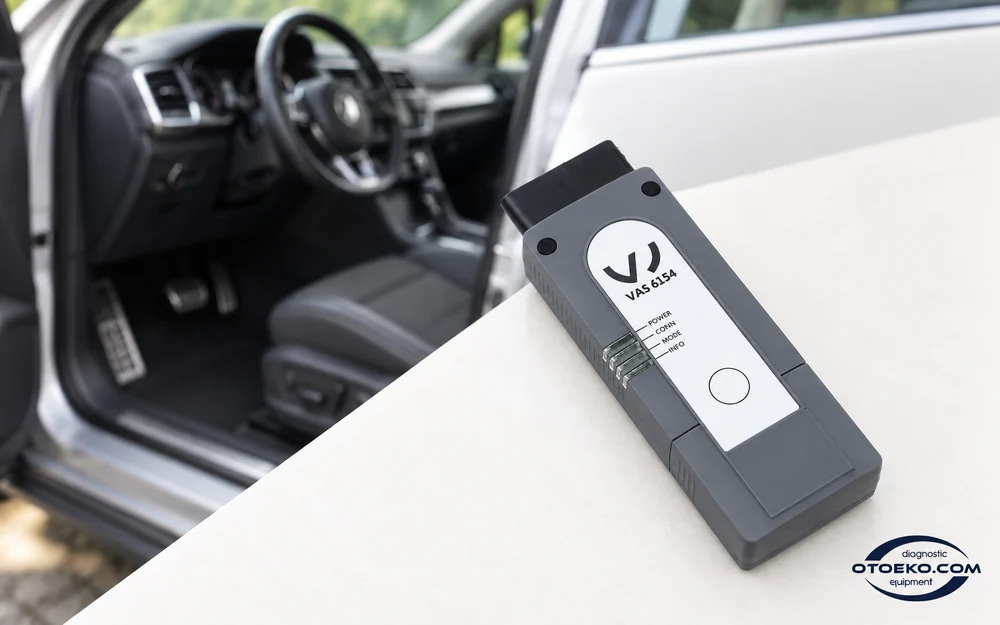
Start with the correct vehicle identity
A useful diagnostic session begins with knowing which vehicle and control unit you are working on. Compare the identification offered by ODIS with the vehicle so that subsequent procedures remain tied to the actual hardware and configuration.
VAS 6154A 1:1 provides the communication link between the computer and vehicle. Across Volkswagen Group brands such as Volkswagen, Audi, SEAT and Škoda, available operations are determined by the relevant vehicle project, control unit and software environment.
- Inspect vehicle and module identification
- Select the appropriate vehicle project and system
- Consider the model and intended operation as well as the brand
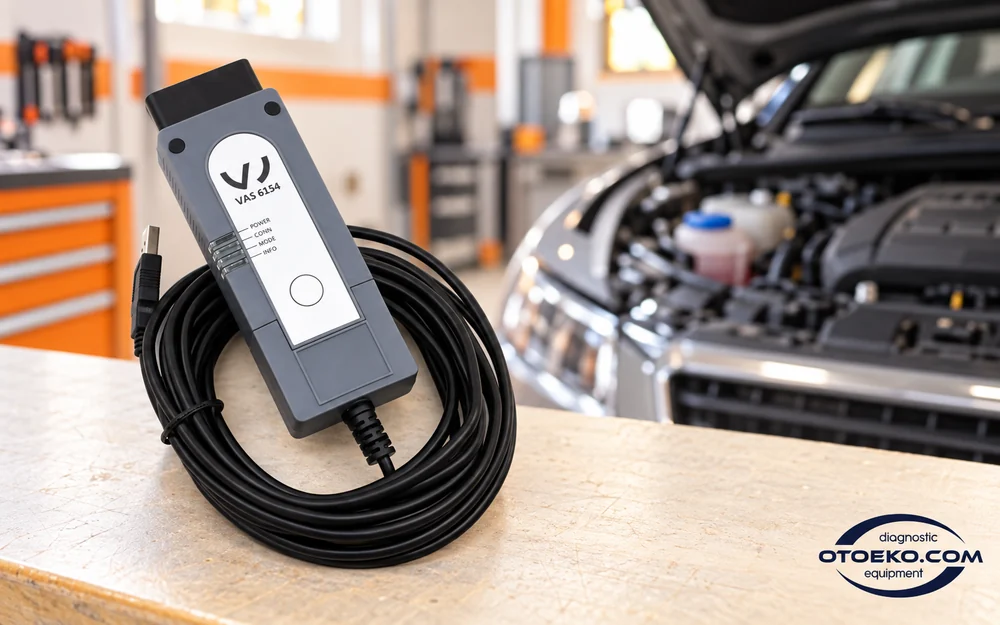
Read fault records alongside measured values
A fault record points to an area to investigate; measured values help explain how that system behaves under the present conditions. Assess the data offered by the relevant module together with the customer's reported symptoms and your physical observations.
Saving the initial state before clearing faults makes the repair easier to verify. Combine codes with measurements and the test plan rather than using the name of a code as the sole reason to replace a component.
- Read DTC records in supported modules
- Focus on values relevant to the complaint
- Compare records before and after the repair
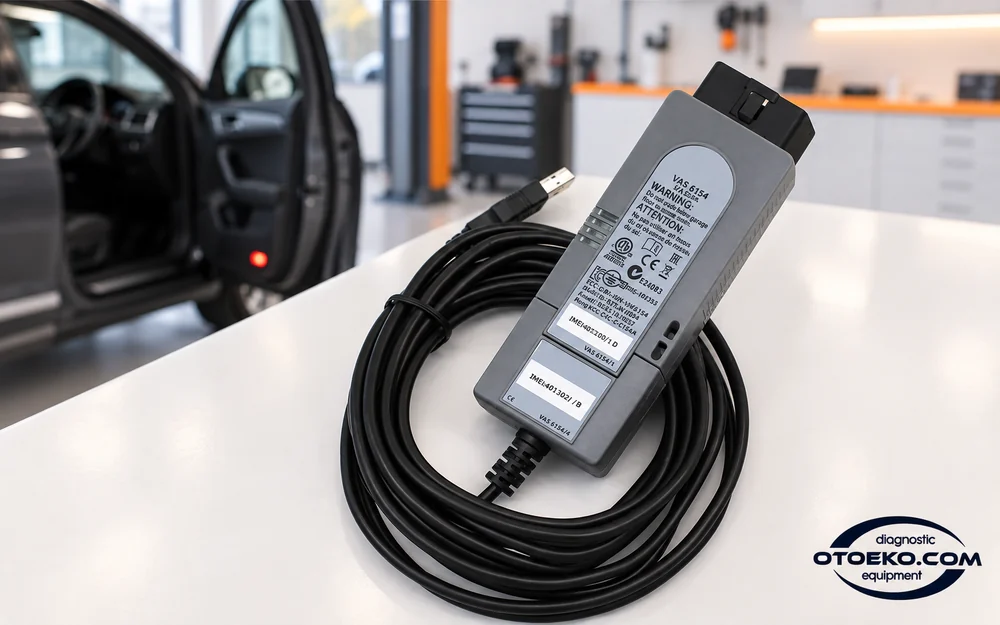
Organise the investigation with guided tests
Where available for the vehicle, ODIS Service offers guided diagnostic steps and test plans. This workflow helps establish which check should come next and keeps the findings within a consistent diagnostic session.
The interface carries data between computer and vehicle; the software supplies the content of each test plan. Follow the required conditions, which can include ignition position, engine temperature or a separate physical measurement before the next step becomes meaningful.
- Use the test plan provided for the vehicle
- Meet the software's prerequisites in sequence
- Support electronic data with physical checks
Supported workflows within the ODIS environment
Use menus appropriate to the vehicle and control unit to organise diagnostic, maintenance and verification tasks.
- Vehicle and control-unit identification
- Reading and clearing diagnostic trouble codes
- Inspecting measured values
- Guided test plans
- Supported component tests
- Basic settings and adaptations
- Post-maintenance service procedures
- Supported coding with appropriate licence and access
Availability varies by vehicle. Online and protected procedures require the relevant software environment and user permissions.
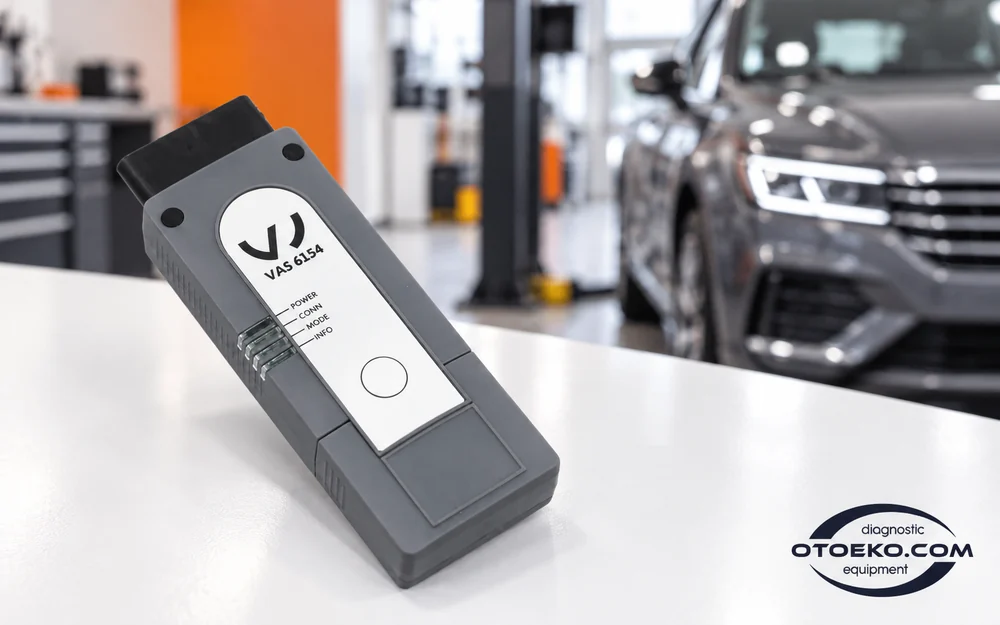
Complete maintenance with the relevant basic settings
Replacing certain parts can require a learning procedure or basic setting in the associated control unit. A compatible ODIS environment gives access to the service and adaptation menus supported by the particular vehicle.
Throttle, transmission and other system routines vary between models. Even when a menu name looks familiar, follow the vehicle-specific procedure, maintain the required supply and operating conditions, and verify that the learning process has completed successfully.
- Review supported basic-setting menus
- Follow required learning steps after component replacement
- Check the system again after completing the procedure
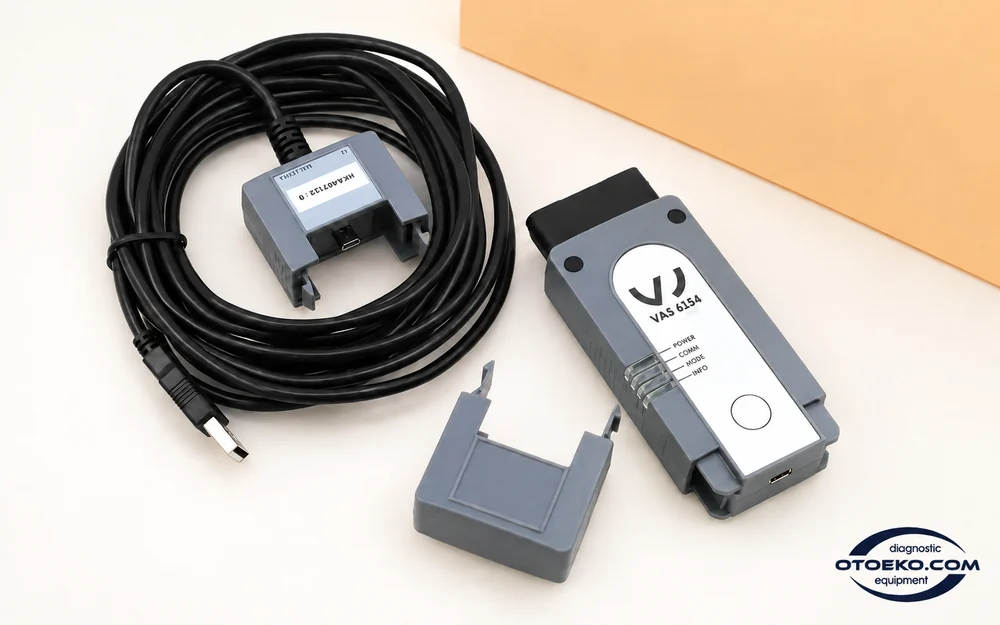
Arrange the workspace around USB or Wi-Fi
USB and Wi-Fi give two ways to connect the interface to a computer. Choose a direct cable connection or a suitable wireless configuration to match the working area while using the same compatible software environment.
Confirm the connection before starting a lengthy procedure. Make sure the intended device is selected, connectors are fully seated and computer power settings will not interrupt communication while the diagnostic session is running.
- Direct USB computer connection
- Wi-Fi with suitable network configuration
- Device and connection checks before each procedure

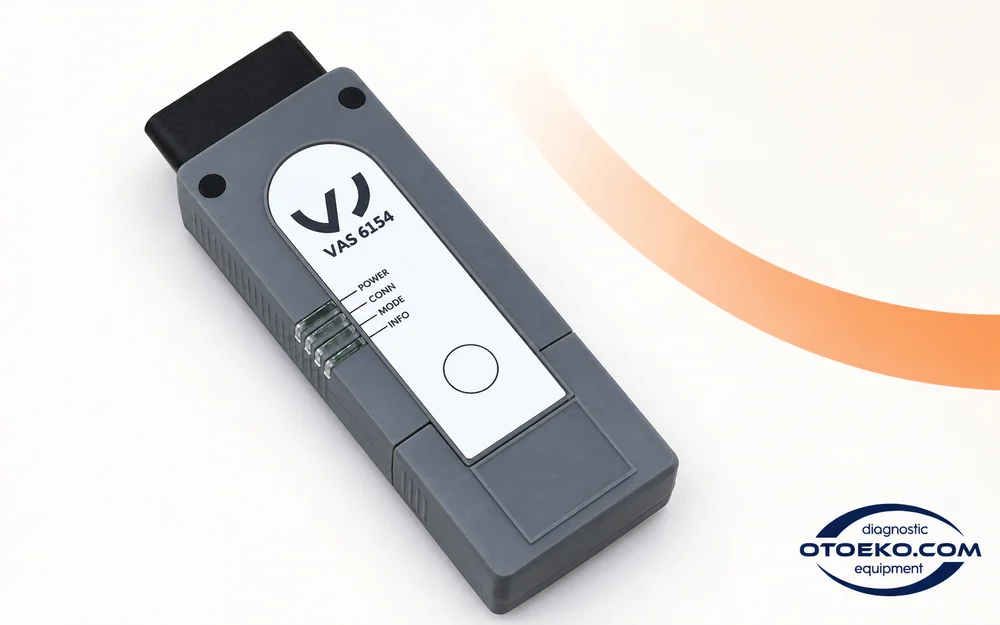
Explore 6154A in 360°
Inspect the front, rear and connection ends of the interface from different angles.
Take a closer look at the 6154A interface
See the body, connection arrangement and physical details in the Otoeko product recording.
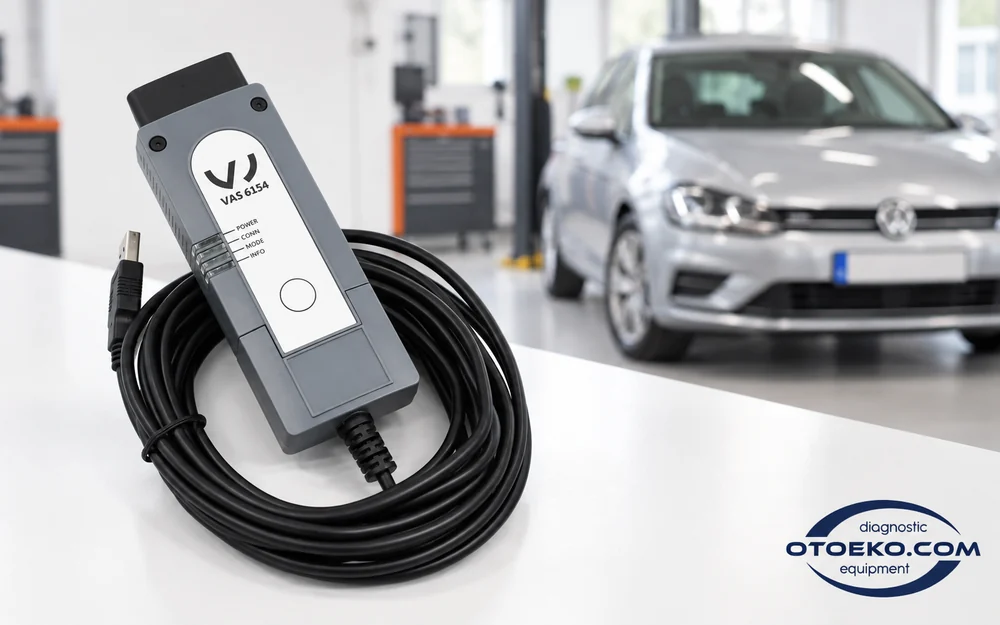
Technical setup and working requirements
| Model / variant | VAS 6154A 1:1 |
|---|---|
| Device type | Computer-based vehicle communication interface |
| Computer connection | USB / Wi-Fi |
| Vehicle connection | 16-pin OBD |
| Software focus | Compatible ODIS Service; appropriate engineering environment where required |
| DoIP | Subject to vehicle and software compatibility |
| Working environment | Compatible Windows computer and interface driver |
| Package scope | Hardware set; software and online access separate |
Connection details apply to the 1:1 hardware variant. Match the vehicle project, driver and ODIS release before planning the session.
Understand the role of DoIP communication
DoIP transports diagnostic data over an IP-based communication link. The offered 6154A variant includes this stated capability; its practical use depends on the vehicle system and the requirements of the software environment.
A communication protocol and permission to perform an operation are separate matters. DoIP alone does not establish support for every new vehicle, control unit or software release. Assess the actual vehicle and version combination when planning a job.
- IP-based diagnostic communication on supported systems
- Assess vehicle, driver and ODIS version together
- Separate protocol capability from access permissions
Plan hardware, software and access as separate elements
This product is offered as a 1:1 hardware variant. The computer and software licence are separate parts of the working environment; purchasing the interface does not create an official manufacturer account or grant protected service permissions.
Online coding, protected areas such as SFD/GeKo and certain control-unit procedures require the relevant user rights. Distinguish the scope of ODIS Service from engineering software when deciding which software environment and permissions your work requires.
- The 1:1 designation is not proof of OEM authenticity
- Arrange software and online access separately
- Distinguish service procedures from engineering permissions
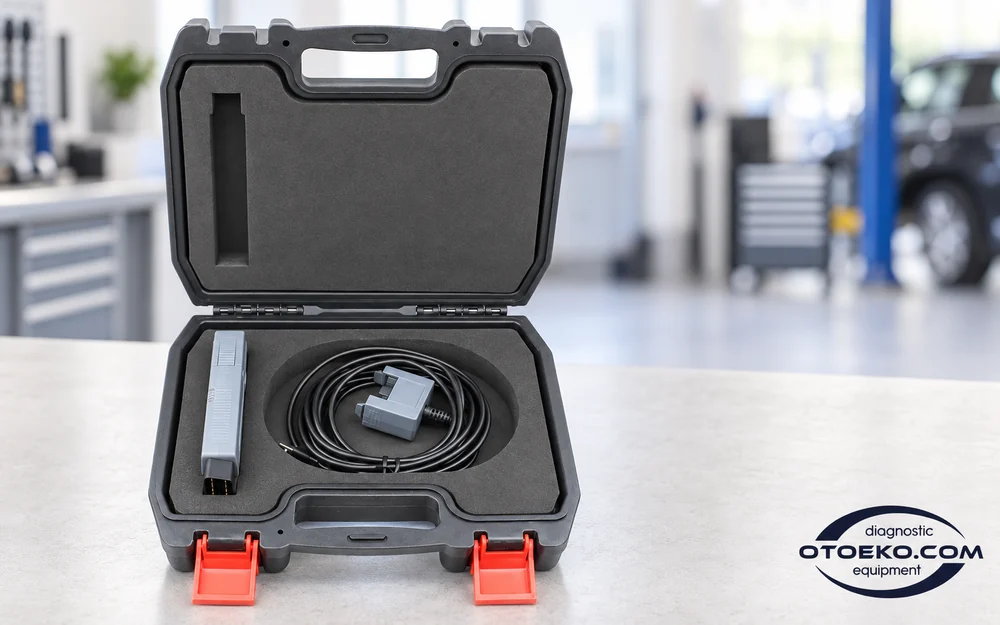
Inside the actual hardware set
The set contains the interface, connection cable and carrying case. A computer, ODIS licence and additional modules are supplied separately.
- VAS 6154A 1:1 interface
- USB connection cable
- Carrying case
Hardware and working scope
The set contains the 1:1 hardware variant. A computer, ODIS licence, online user account and additional modules are separate elements. Available procedures depend on the vehicle project, driver, software version and access rights. The hardware set does not include an ongoing update subscription or a commitment to support every future model.
Practical questions before choosing 6154A
Does the interface work on its own?
No. The 6154A provides communication between the vehicle and a computer. Diagnostic screens, tests and guided procedures run in compatible software installed on that computer.
Does 1:1 mean genuine OEM hardware?
No. Here, 1:1 identifies the variant offered in this listing. It is not a manufacturer-issued proof of OEM authenticity. Assess the hardware variant together with its compatible software environment.
Is software included?
The set covers the hardware. ODIS software, its usage licence and any required online access are supplied separately. A computer is not included.
Which vehicles can it be used with?
It is intended for Volkswagen Group vehicles. Evaluate the model, control unit, software project and required operation as well as the brand; every function is not available on every vehicle.
Are both USB and Wi-Fi available?
Yes, the offered variant provides both computer-connection options. Set up the appropriate driver and network configuration, then select the interface in the software.
Does DoIP provide access to all new vehicles?
DoIP is a communication protocol. Exact coverage depends on the vehicle system, hardware variant and software version; it does not replace security access or establish universal new-model support.
Are SFD and GeKo access included with purchase?
No. Protected procedures require the relevant user account, permissions and software conditions to be arranged separately. Buying the hardware does not automatically grant those rights.
Does the case contain a dock or computer?
The actual set shows the interface, connection cable and carrying case. A computer, additional module or docking station is not listed as included.